
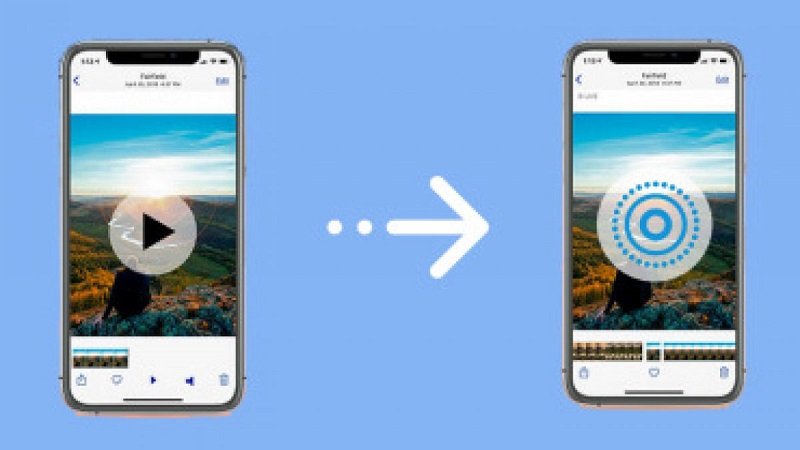
You know that moment when you capture something awesome on video, like your dog doing something hilarious or a short snippet of a sunset, and you think, “I wish this could be a Live Photo!”? Yeah, I’ve been there. The great thing is — it’s totally possible to turn almost any video into a Live Photo on your iPhone. And trust me, it’s easier than it sounds.
I’ve messed around with this a lot, trying different apps, trimming clips, and testing wallpapers. By the end of this guide, you’ll know exactly how to do it, and your iPhone memories will feel alive. No boring tech jargon, just straightforward steps that work in real life.
What Is a Live Photo, Really?
So, before we jump in, let’s clear something up. A Live Photo isn’t just a picture that moves — it’s more like a tiny movie embedded in your photo. It captures 1–2 seconds of motion and sound before and after you press the shutter.
I know it sounds simple, but here’s why it’s magical: some moments just don’t look right as a still photo. A dog mid-jump, a friend laughing, a coffee splash — these micro-moments tell the story best when they’re moving.
Live Photos have a few perks I love:
-
Animated wallpapers – your lock screen literally moves!
-
Interactive memories – tap and hold to see motion.
-
GIF-friendly – easily shareable on Instagram, WhatsApp, or iMessage.
Honestly, once you start using Live Photos, going back to regular still pictures feels… flat.
Why You’d Want to Convert a Video Into a Live Photo
Here’s the thing: not every moment starts as a Live Photo. Sometimes the perfect shot is already recorded as a video, and converting it has some real advantages:
-
Short, shareable memories: Instead of sending a 10-second video, a Live Photo keeps just the essence of the moment.
-
Personalized wallpapers: Who doesn’t want a moving lock screen that reflects their favorite memory?
-
Highlighting the best part: Live Photos let you focus on the key 3–6 seconds. No extra fluff.
-
Fun for social media: Convert your Live Photo into GIFs or small clips for Instagram stories or messages.
In short, converting videos gives you flexibility and lets your memories pop in a way that static photos can’t.
What You Need Before You Start
Before you dive in, here’s your checklist:
-
An iPhone – Live Photos are Apple-specific.
-
A short video clip – 3–6 seconds works best; longer clips can be choppy.
-
A conversion tool or app – I’ll show you the best ones below.
-
Some patience for trimming and testing – small adjustments make a big difference.
That’s it. You don’t need any expensive software or fancy equipment.
Method 1: Use an App to Convert Video to Live Photo
Most people find apps easiest. I’ll show you the method that works every time.
Step 1: Choose the Right App
The apps I’ve tried and swear by are:
-
intoLive: Super user-friendly, works every time, free for basic features.
-
Video to Live: Lightweight, does exactly what it says.
I usually stick with intoLive because the interface is simple, but both work fine.
Step 2: Give the App Access
Open the app and it will ask for access to your Photos. You have to allow this so the app can read your videos and save your new Live Photo. I know, privacy concerns — but I promise, it’s safe.
Step 3: Pick Your Video
Select the video you want. Short clips work best. Pro tip: if your video is over 6 seconds, trim it first. Longer clips often don’t animate smoothly.
Step 4: Trim and Edit
Most apps let you trim your video. This is crucial — I’ve learned the hard way that a messy Live Photo just looks awkward.
Here’s what I do:
-
Pick the start and end points carefully.
-
Crop or rotate if needed.
-
Apply filters if you want (optional).
Basically, focus on the best 3–6 seconds — that’s all you need for a Live Photo that pops.
Step 5: Convert and Save
Once you’re happy, tap Convert. The app will do its magic and save the new Live Photo to your Photos app.
Voila! Your video is now alive.
Step 6: Set It as a Wallpaper (Optional)
Want to see your Live Photo in action?
-
Open Photos → select the Live Photo.
-
Tap Share → Use as Wallpaper.
-
Choose Set Lock Screen, Home Screen, or Both.
Now press and hold your lock screen. The Live Photo animates — and honestly, it feels pretty cool every time.
Method 2: Convert Video Online (No App Needed)
Not into apps? No problem. Online tools can do the job too.
Step 1: Pick a Reliable Converter
Some of my favorites:
-
video-to-livephoto.com
-
xwallpaperhub.com
Upload your video, trim it, and convert — no app download required.
Step 2: Upload Your Video
Select the video file (MP4, MOV, AVI usually work).
Step 3: Trim and Adjust
Trim the video to 3–6 seconds for smooth animation. Longer clips can stutter.
Step 4: Convert and Download
Click Convert, wait a few seconds, then download the resulting .mov file.
Step 5: Transfer to iPhone
Use AirDrop, iCloud, or email to transfer the file. Once it’s in Photos, it’s ready to be used like any Live Photo.
Tips for Making Awesome Live Photos
I’ve learned a few things after experimenting:
-
Keep clips short — it looks better and loops smoothly.
-
Focus on motion — Live Photos are all about movement.
-
Trim carefully — don’t include unnecessary frames.
-
High-quality videos look sharper as Live Photos.
-
Test your wallpaper first — some clips don’t animate well.
Common Problems and How to Fix Them
-
Live Photo doesn’t animate: Make sure it’s saved as a Live Photo, not just a MOV file. Check wallpaper settings.
-
App crashes: Close other apps, restart your phone, or try a different app.
-
Video too long: Trim to 3–6 seconds before converting.
Advanced Tip: Make Multiple Live Photos from One Video
Got a longer video? Don’t worry. You can make several Live Photos:
-
Split the video into multiple short clips.
-
Convert each clip separately.
-
Use them individually or rotate as wallpapers.
I did this with a short vacation video — ended up with 5 amazing Live Photos of my trip highlights.
Alternative Uses for Live Photos
Live Photos aren’t just for wallpapers:
-
Turn them into GIFs for social media.
-
Share via iMessage — the motion works on other iPhones.
-
Include them in slideshows or presentations.
Basically, Live Photos make your memories more dynamic and shareable.
Conclusion – Bring Your Memories to Life
Converting a video to a Live Photo is surprisingly simple, but it makes a huge difference. Here’s the quick checklist:
-
Pick a short video (3–6 seconds).
-
Trim it to highlight the best moment.
-
Convert using an app or online tool.
-
Save and enjoy your animated memory.
Honestly, once you try it, static photos feel flat. Live Photos add life, personality, and fun to your iPhone memories — and they’re easier than you think.